IVR Post Call Survey - Creating the CSAT Report

To calculate a Customer Satisfaction Score (CSAT) for a specific period, the exported file requires only minimal editing, typically totalling ratings and tidying the layout. An example completed file is provided to illustrate the process.
Creating the CSAT Report
Login to your Active Inbound Account and Select Call Handling -> Data Capture & Transcription.
Select Export

- Select Campaign from the drop down
- Enter the from and two Transcribed dates
- Select the Record Status from the drop down. (select Survey Complete)
- Select the Update Status from the drop down (select Survey Exported)
- Leave Export Method as CSV File.
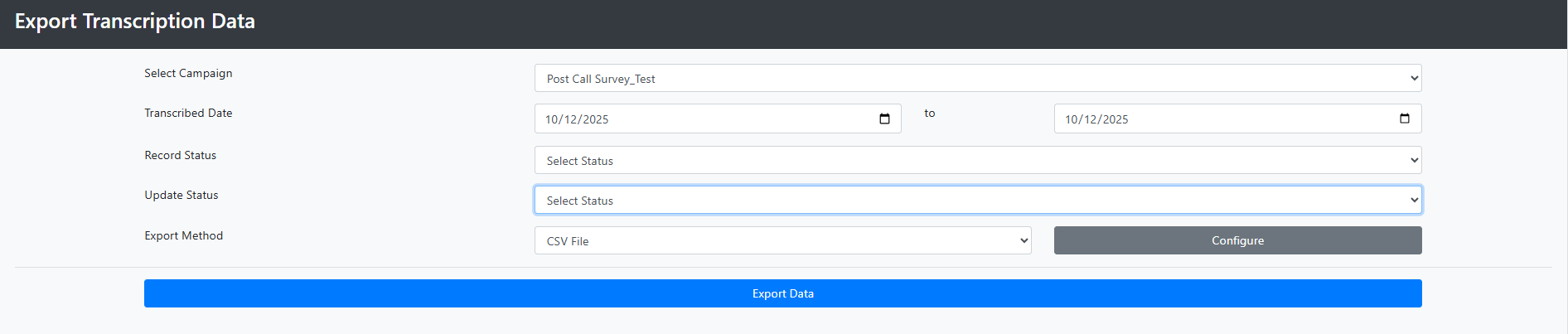
Click Export data and open the CSV File.
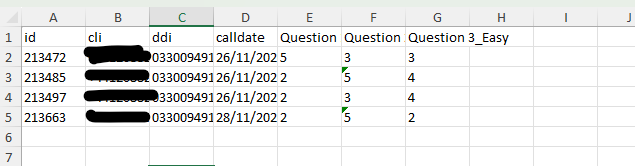
Select the Data in the CSV file and copy. (Ctrl C)
Now open a blank Excel Spreadsheet.
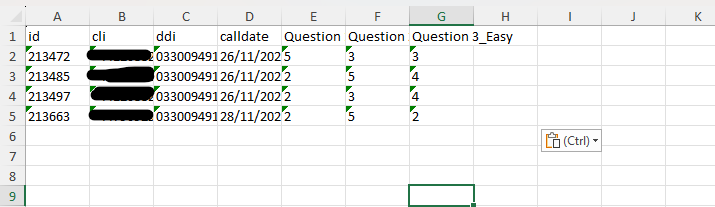
We will now Paste the copied data from the CSV file into the blank Spreadsheet. (Ctrl V)
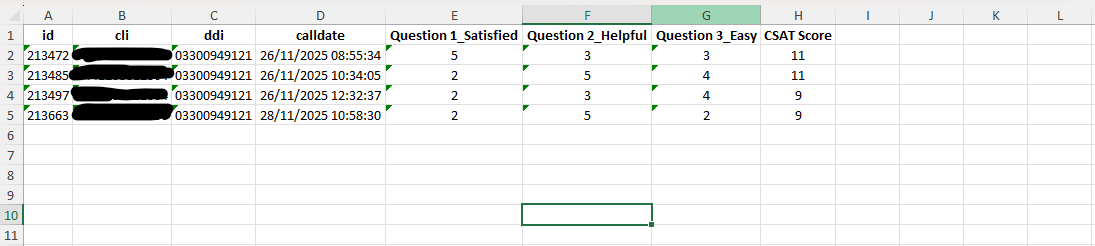
Centre and space the data.
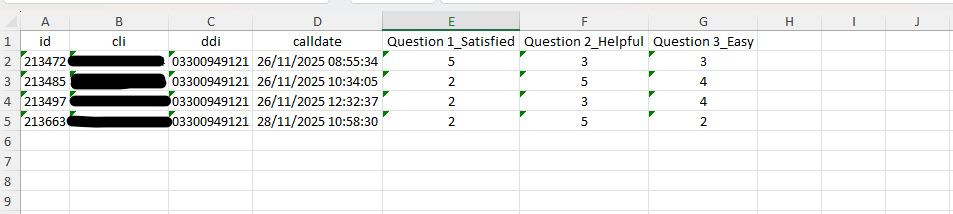
In Cell H1 type "CSAT Score".
In Cell H2 type this formula "=E2+F2+G2"
Drag Cell H2 to the bottom of the data rows.
Highlight Row and change the formatting to BOLD
In Column F, at the bottom of the data type "Overall CSAT Score for Period."
In the adjacent cell in column H sum all the data in the column.
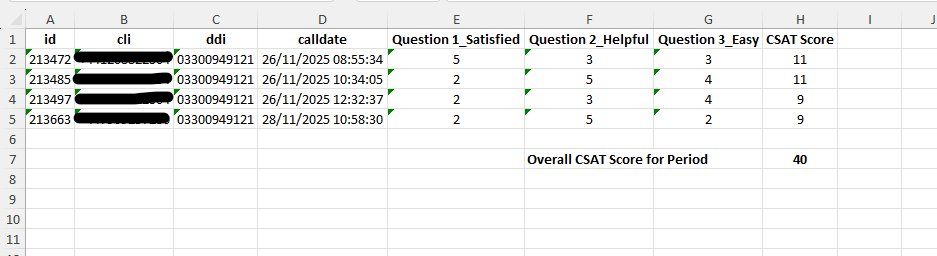
Rename and Save the Spreadsheet
If preferred, Teleproject UK can perform the export and CSAT preparation on the customer’s behalf for £30 per request.
